-
Business Solutions Portal Guides
-
Guides
-
How to create a new user?
-
Step 1
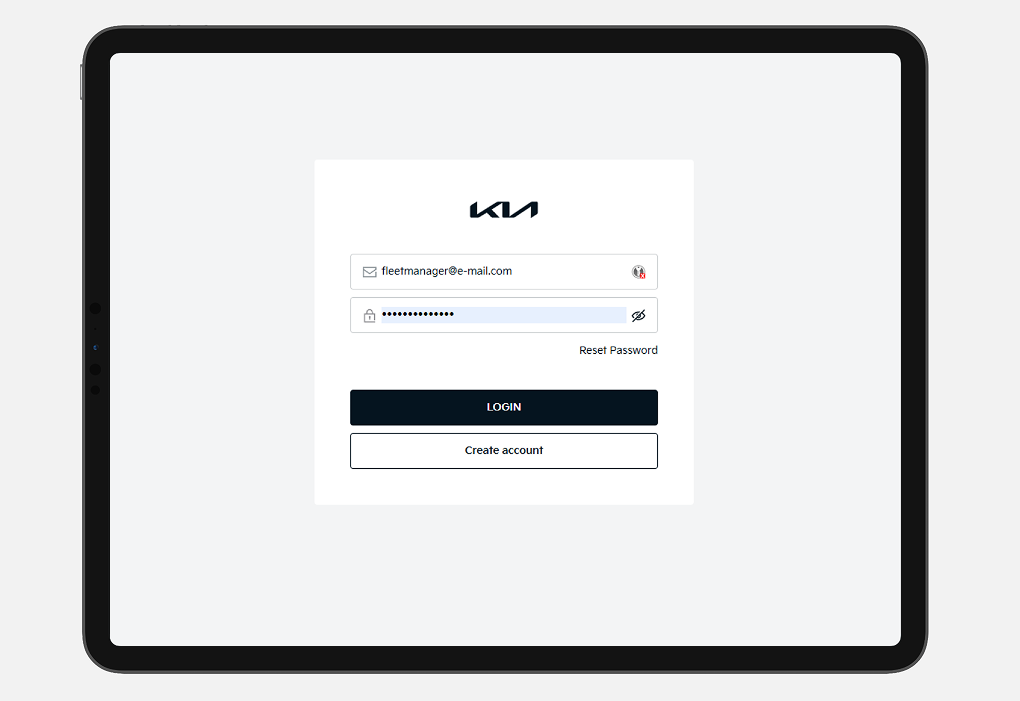
✔ Log into Kia Business Solutions.
-
Step 2
✔ Navigate to “User Management.”
-
Step 3
✔ Click “Create a new user.”
-
Step 4
✔ Fill in the fields and select the corresponding role(s).
✔ Send the invitation.
-


-
How to activate Kia | Pleos Fleet
-
Step 1
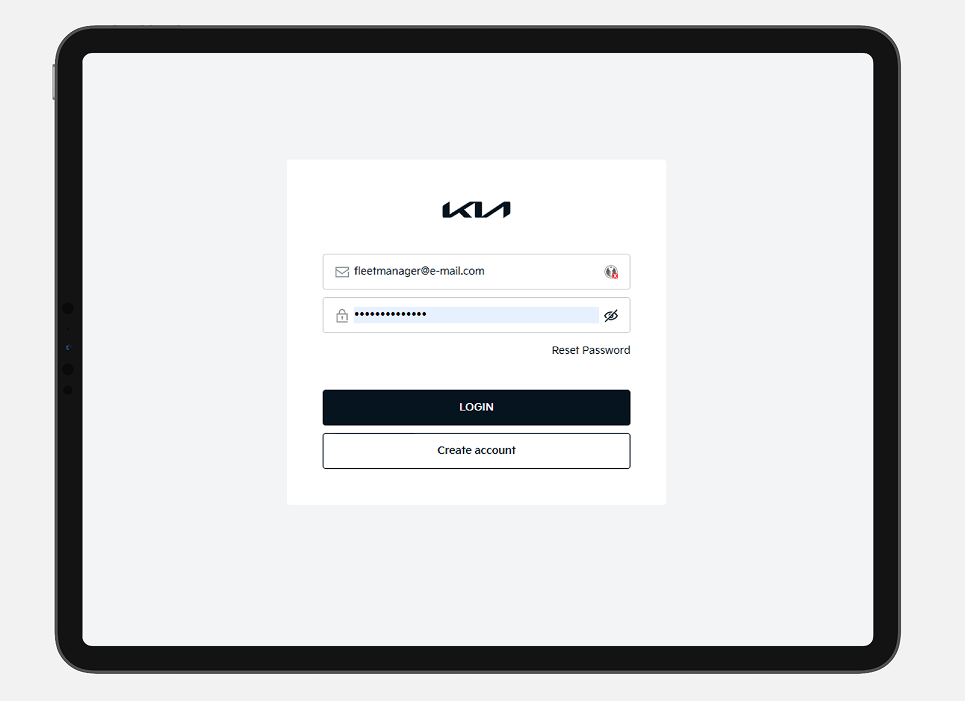
✔ Log into Kia Business Solutions.
-
Step 2
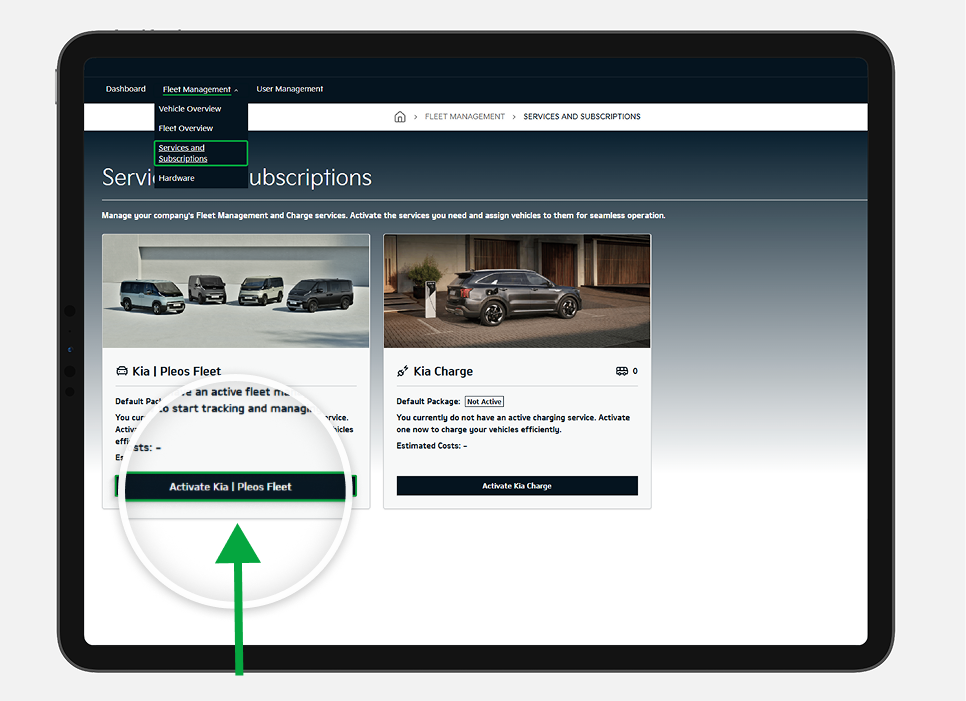
✔ Navigate to Fleet Management → Services & Subscriptions.
✔ Click on "Activate Kia Pleos Fleet"
-
Step 3
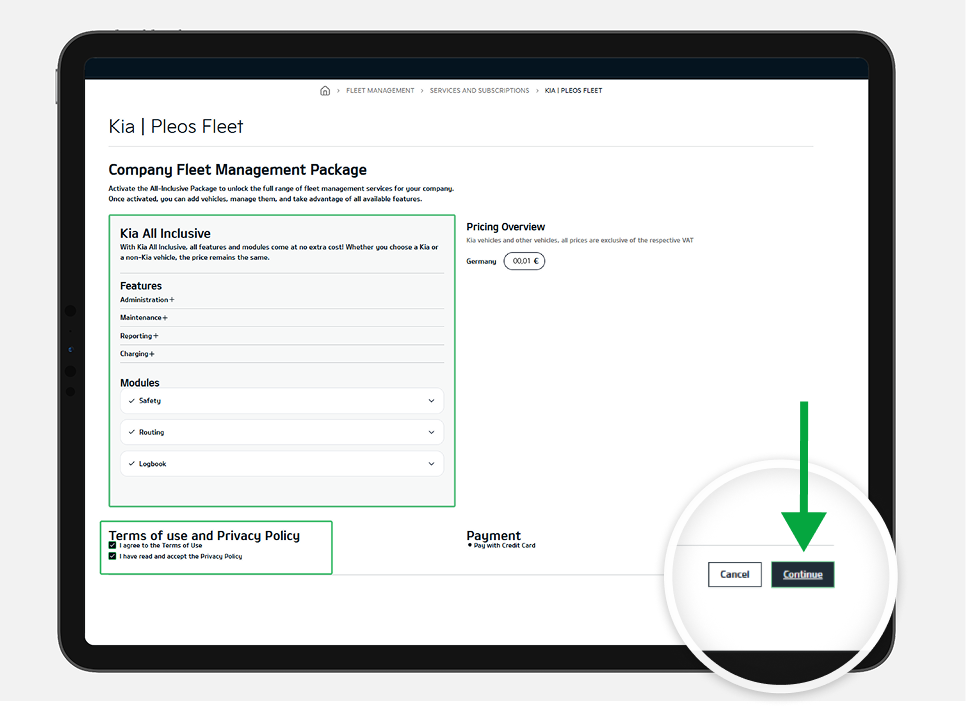
✔ Choose the package you prefer
✔ Accept the Terms & Privacy
✔ Click Continue
-
Step 4
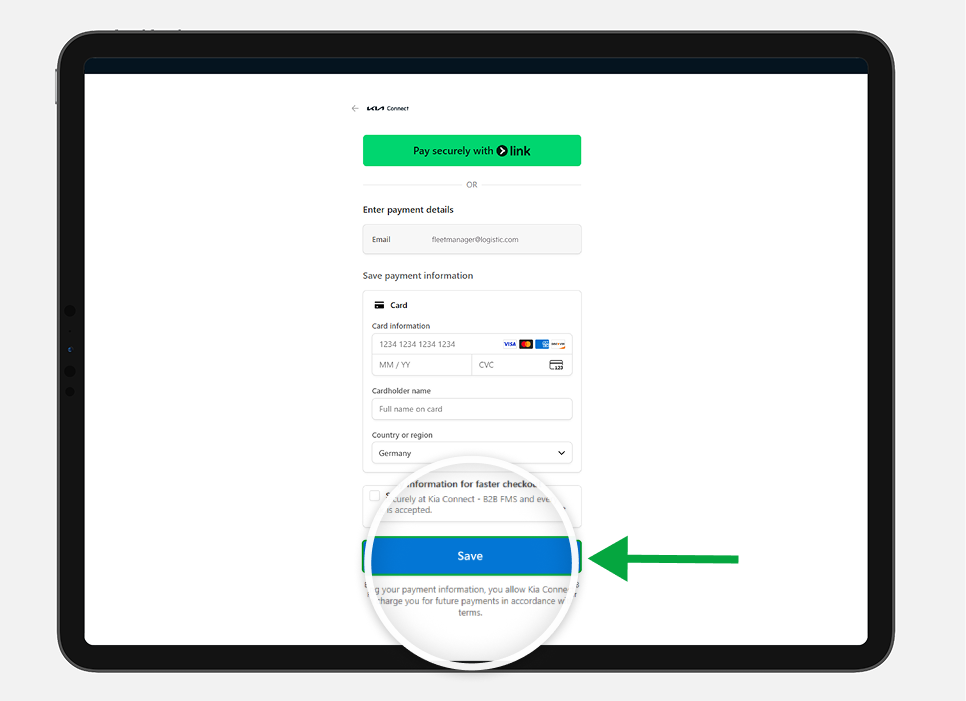
✔ Enter your payment details.
✔ Click Save
-
Step 5
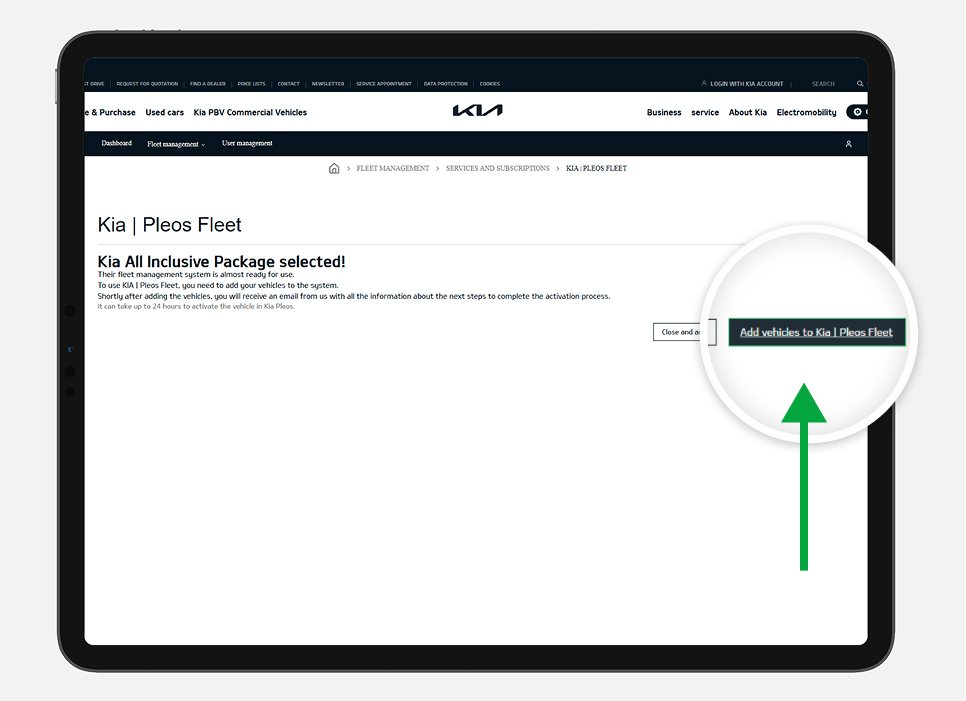
✔ Click Add Vehicles to Kia | Pleos Fleet
-
Step 6
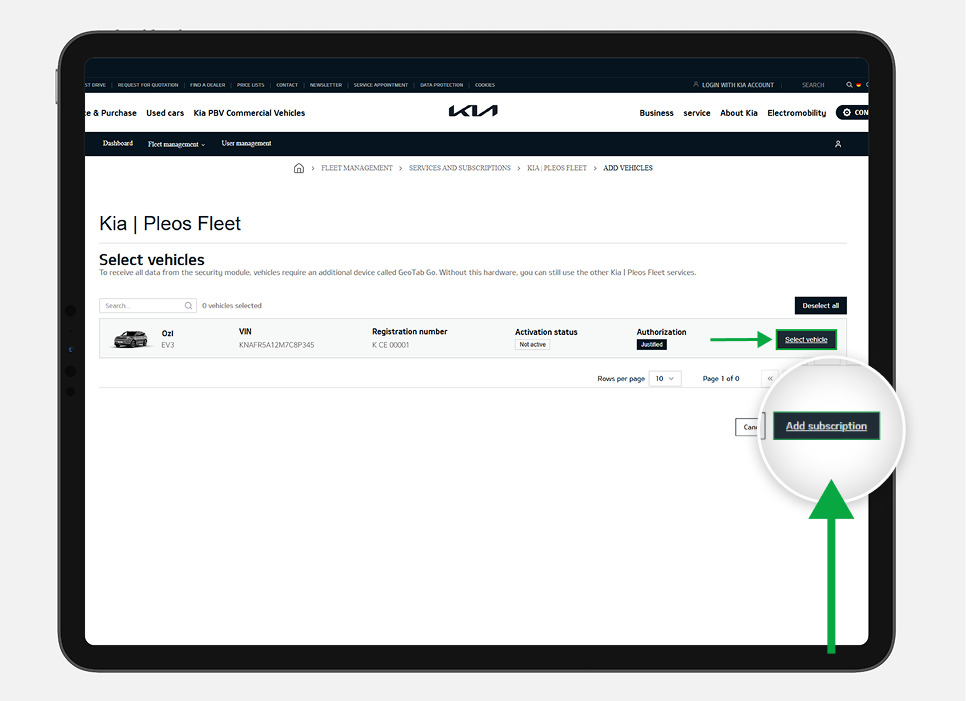
✔ Select the vehicle you wish to activate
✔ Once selected click on Add Subscription
-
Step 7
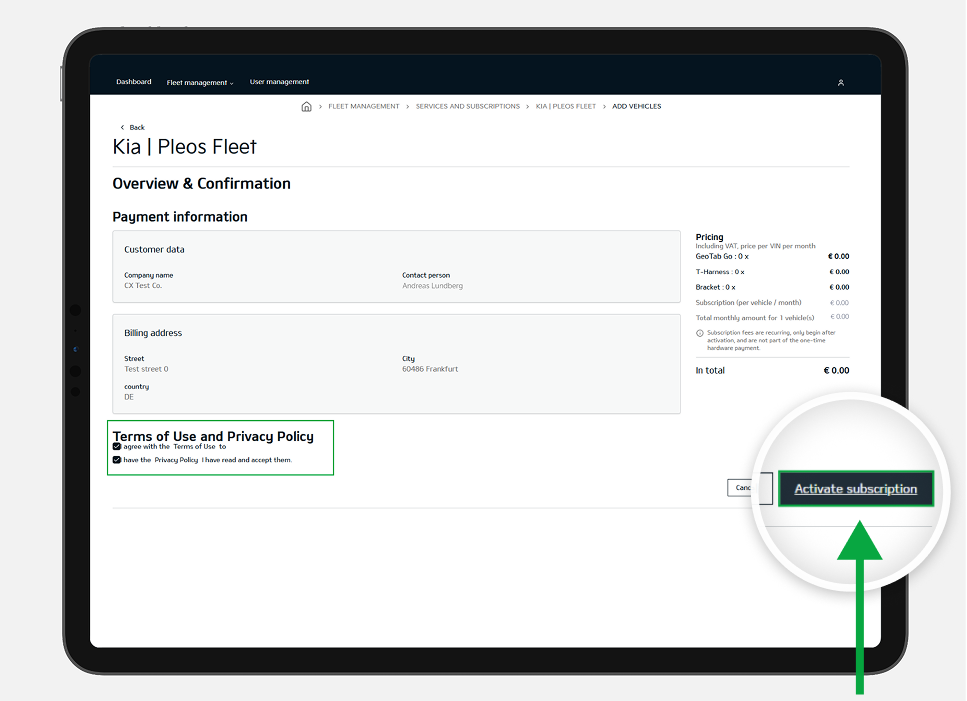
✔ Accept the Terms & Privacy
✔ Click on Activate the subscription
-
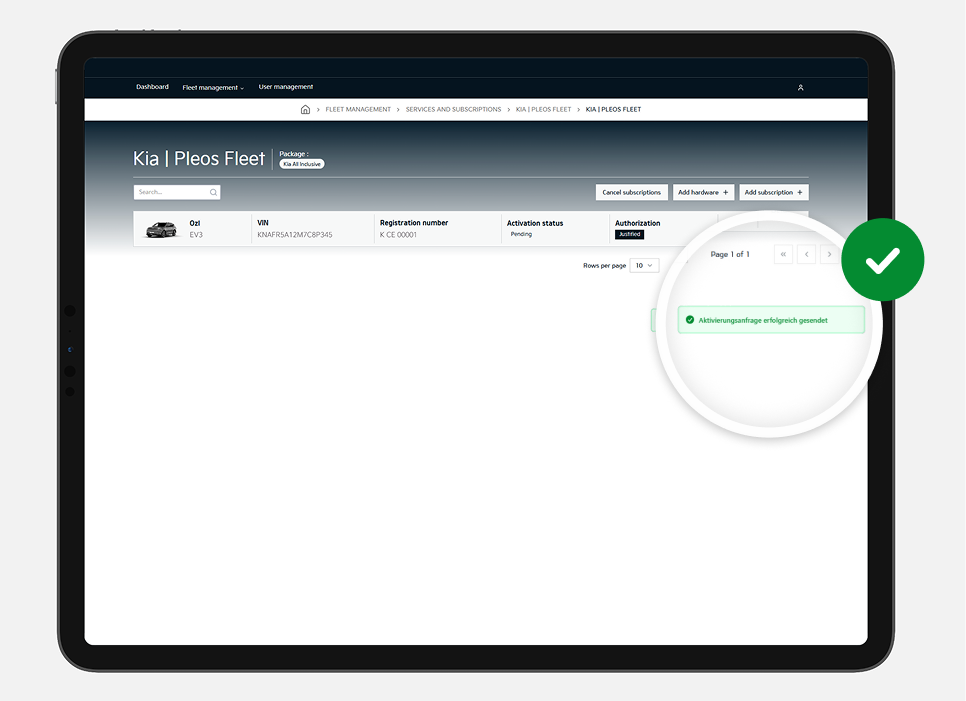
Success Page
-
-
How to delete a user?
-
Step 1
✔ Log into Kia Business Solutions.
-
Step 2
✔ Navigate to “User Management.”
-
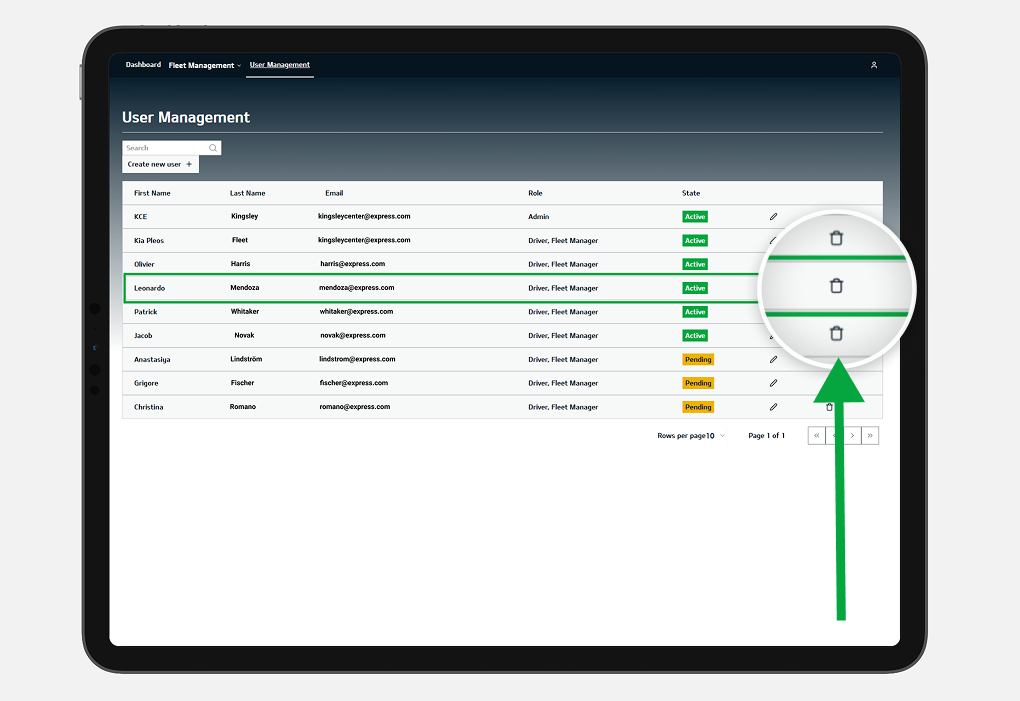
Step 3
✔ Find the user who is to be deleted.
✔ Click the trash can icon next to the corresponding user.
-
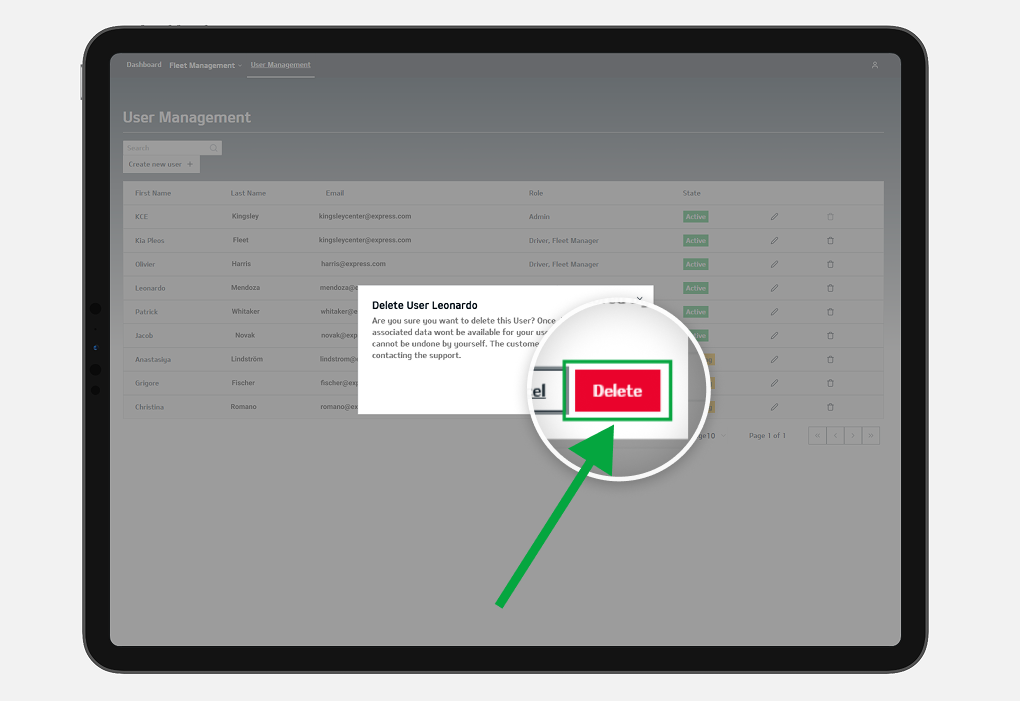
Step 4
✔ Confirm deletion in the displayed dialog box
-
-
How to change user Information?
-
Step 1
✔ Log into Kia Business Solutions.
-
Step 2
✔ Navigate to “User Management" section.
-
Step 3
✔ Find the user whose information needs to be updated.
✔ Click the pencil icon next to the corresponding user.
-
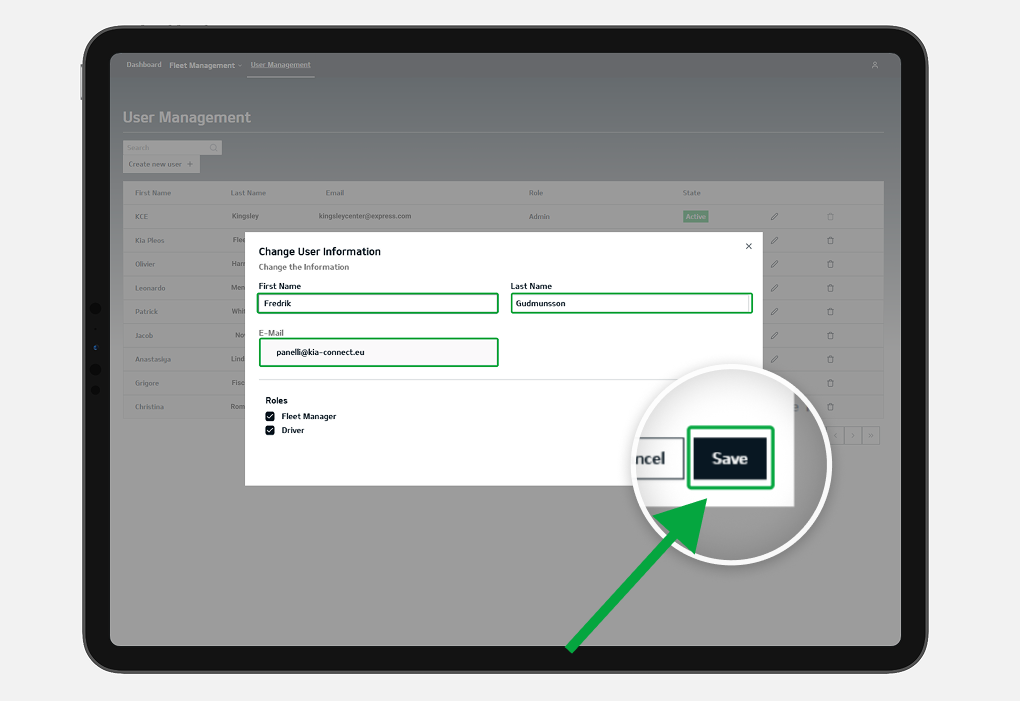
Step 4
✔ Edit the fields or corresponding role(s).
✔ Confirm the changes by clicking the Save button.
-

-
How to register a new vehicle?
-
Step 1
✔ Log into Kia Business Solutions.
-
Step 2
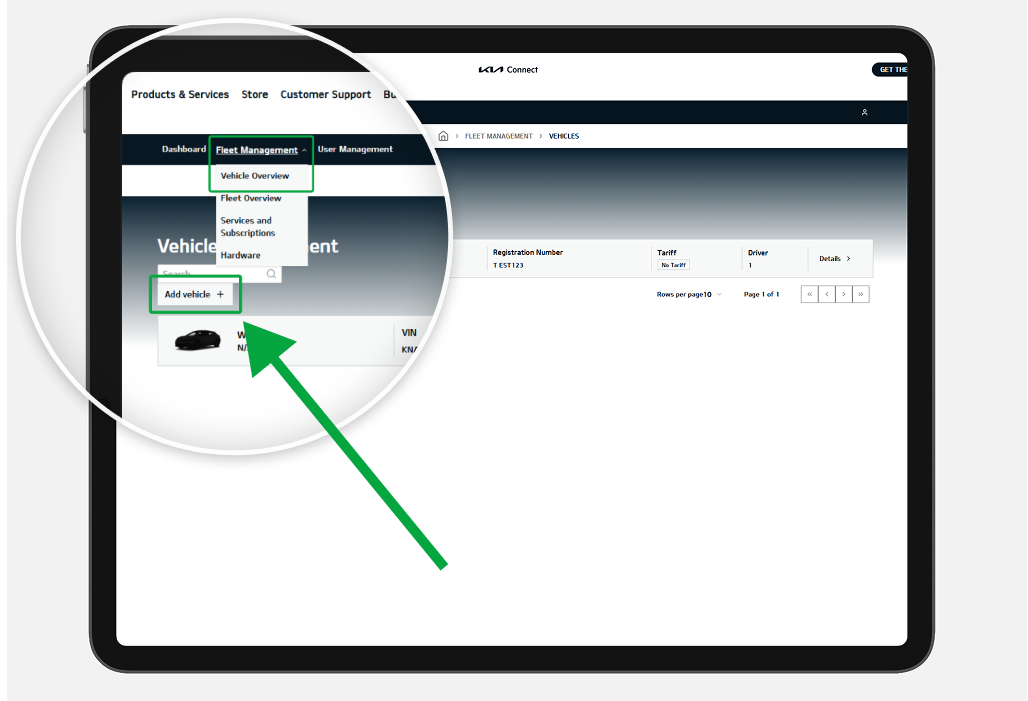
✔ Navigate to the "Fleet Management" → "Vehicle Overview"
✔ Click the "Add new Vehicle" button to open the registration form that allows you to add multiple vehicles.
-
Step 3
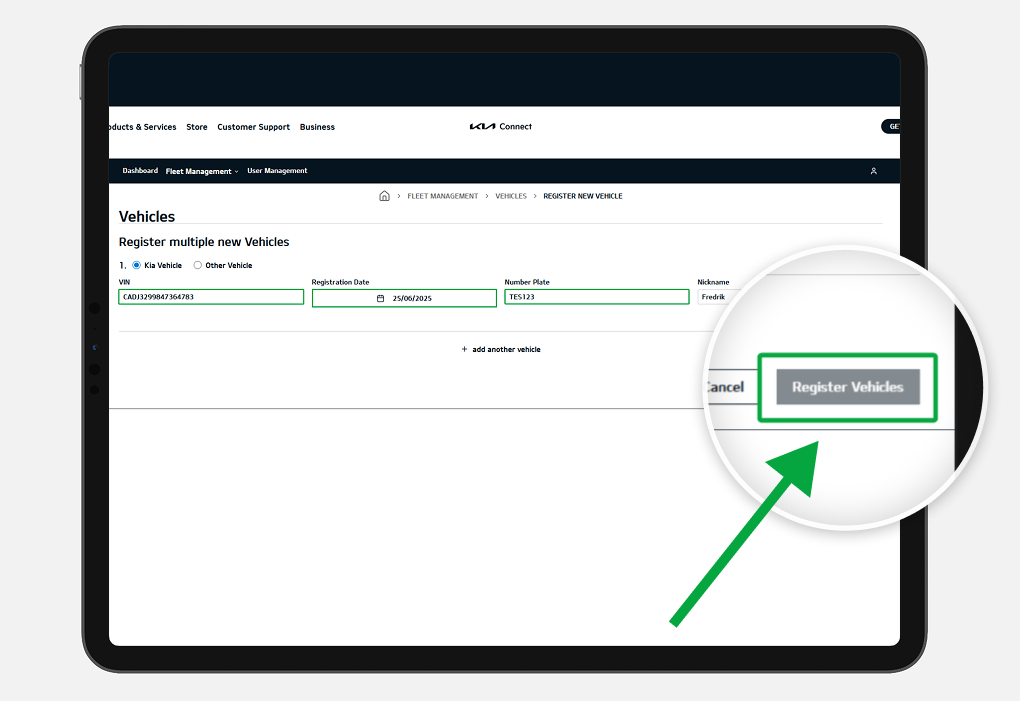
✔ Enter the required information in the appropriate fields (VIN, Registration Date, Number Plate, etc.)
✔ Click "Register Vehicles"
-
-
How to deregister a vehicle?
-
Step 1
✔ Log into Kia Business Solutions.
-
Step 2
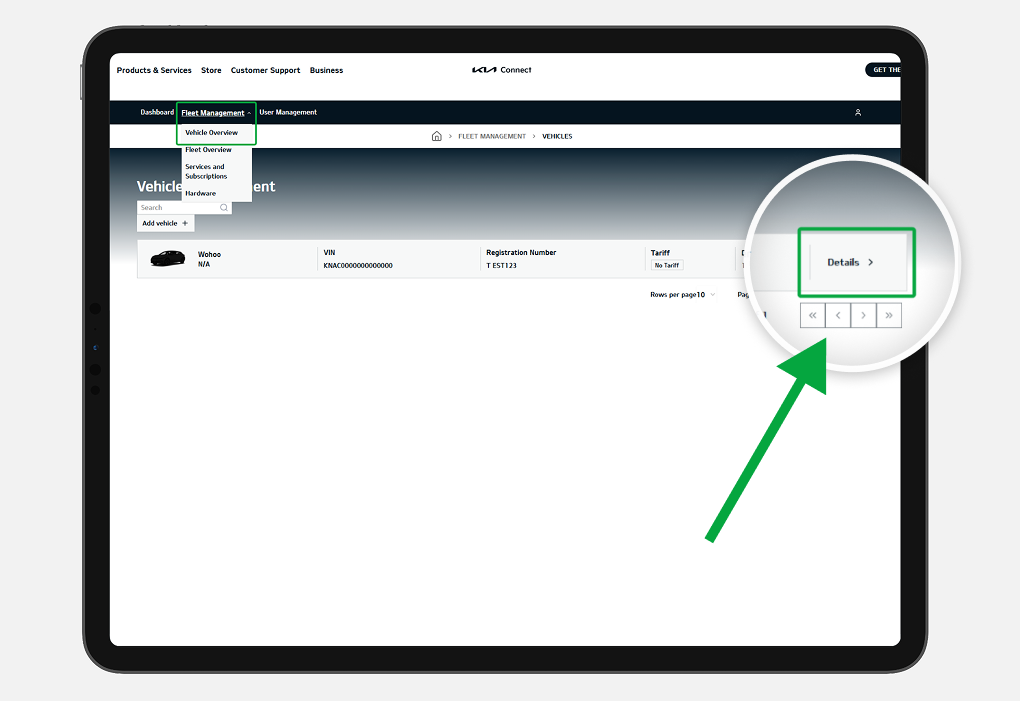
✔ Navigate to "Fleet Management" → "Vehicle Overview".
-
Step 3
✔ Click on the “Details” button of the vehicle you want to deregister.
-
Step 4
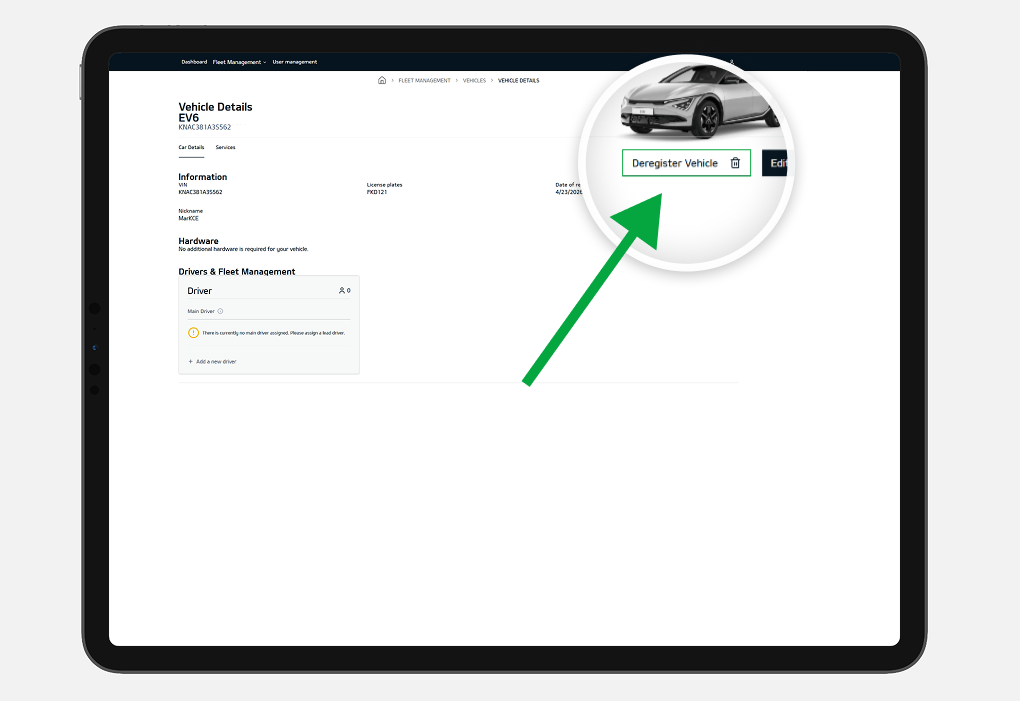
✔ Click on the “Deregister Vehicle” button.
✔ Confirm your step by clicking "Deregister"
-

-
Assign a Driver to vehicle
-
Step 1
✔ Log into Kia Business Solutions.
-
Step 2
✔ Navigate to the "Fleet Management" → "Vehicle Overview"
✔ Click on the “Details” button of the vehicle to which you want to add the driver(s).
-
Step 3
✔ Scroll down to the Drivers & Fleet Management section.
✔ Click on the “Add a New Driver” button.
-
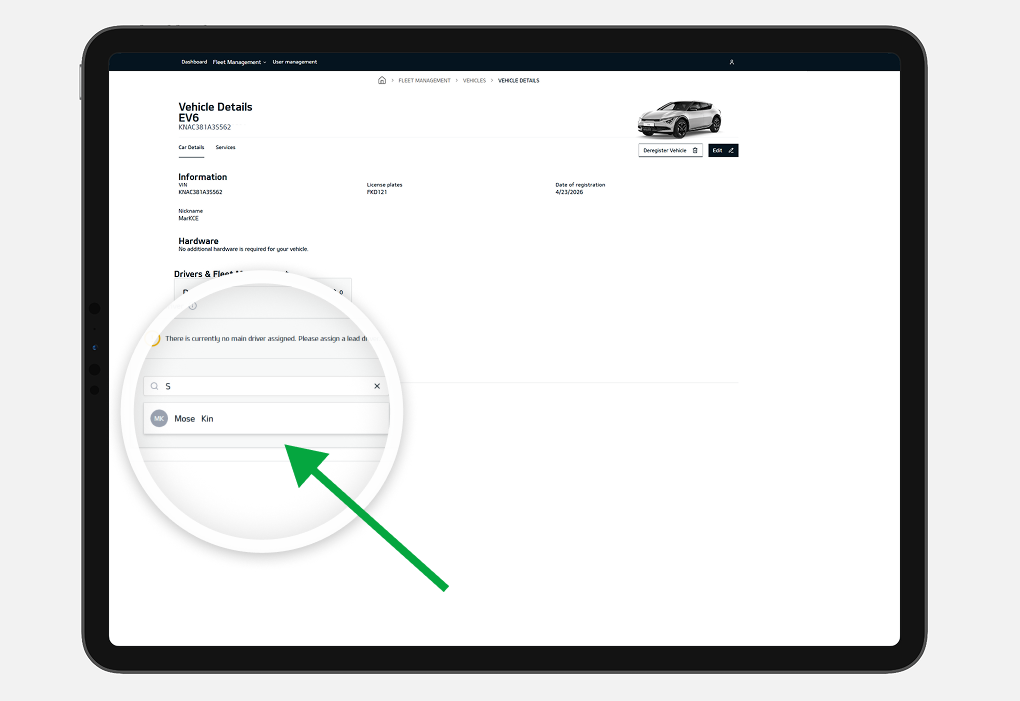
Step 4
✔ Search for the driver you want to assign and select them.
-

-
Unassign a Driver from a Vehicle
-
Step 1
✔ Log into Kia Business Solutions.
-
Step 2
✔ Navigate to the "Fleet Management" → "Vehicle Overview"
✔ Click on the “Details” button of the vehicle to which you want to add the driver(s).
-
Step 3
✔ Scroll down to the Drivers & Fleet Management section.
✔ Locate the driver you want to unassign.
✔ Click on the three dots (…) next to the driver and select “Unassign”.
-

-
Assign a Driver as the Main Driver
-
Step 1
✔ Log into Kia Business Solutions.
-
Step 2
✔ Navigate to the "Fleet Management" → "Vehicle Overview"
✔ Click on the “Details” button of the vehicle to which you want to add the driver(s).
-
Step 3
✔ Scroll down to the Drivers & Fleet Management section.
✔ Locate the driver you want to assign as the main driver.
✔ Click on the three dots (…) next to the driver then select “Assign as Main Driver.”
-
